A tour of the viewer
You will learn: what each panel of the browser viewer shows, using an archive that carries the full set of section kinds, and how the same archive looks in the terminal and from Python.
You need: an installed vibe-viewer with the default modes profile, and a
.qvf file with something in it. The bundled demo carries a single
structure section, which is enough for the first two stops; the rest of
the tour needs sections from a producer. The figures use computed
vibe-qc showcase archives, with explicitly
illustrative fixtures for panels that the available archives do not carry.
These are captures of the actual viewer, not generated artwork. The
regeneration notes record the inputs.
Time: about ten minutes.
1. Something to look at
vibe-viewer demo -o water.qvf          # a structure-only archive, no producer needed
vibe-viewer info water.qvf             # what is in it
If you have your own archive, use that instead, and ask it the same question first:
vibe-viewer info calculation.qvf
info lists every section with its kind and size. Anything listed here gets
a sidebar entry; anything not listed is not in the file, however hard you
look for it in the viewer.
2. Open it
vibe-viewer open water.qvf
For your own data, replace water.qvf with the archive you inspected in
step 1. From the density section onward, the examples describe a calculated
archive; those panels will not appear in the structure-only water demo.
The terminal prints the startup banner, one row per section with its render
status, and your browser opens at http://127.0.0.1:8080. The server stays
in the foreground until you press Ctrl+C.

The structure panel. Sidebar on the left, viewport in the centre, the section’s controls on the right. Scientific charts and tables open in the resizable result panel below the viewport.
Rotate with a left drag, pan with a middle drag, zoom with the wheel, r to reset. Press ? for the shortcut list and Ctrl/Cmd+K for the command palette, which also jumps to any section by name.
3. The structure
The first section to activate is the structure: CPK-coloured atoms, bonds from the file’s own connectivity or inferred from covalent radii. Try the Representation picker in the Display card, then a Material Style. Switch on Show atom labels, then press m and click two atoms for a distance, a third for the angle.

Formaldehyde in ball-and-stick.
4. Density and difference density
Click a volume.density section. The payload is read from the archive now,
not at open time, and the isosurface appears translucent over the structure
at the default isovalue of 0.05 (in the field’s stored units). Lower the
Isovalue and the surface generally grows outward; raise it to restrict
the contour to regions of higher density. Use the archive’s units when
reporting a contour value; changing the contour changes the view, not the
electron density in the archive.

The electron density.
A volume.difference section is a signed field and draws both signs at
once: where density accumulated and where it left.

A difference density. This capture uses illustrative panel data.
5. Orbitals: stored and on demand
A volume.orbital section is an orbital the producer pre-evaluated on a
grid. It renders like any other signed field, with both lobes in contrasting
colours.

A stored orbital grid.
A wavefunction.gto section is different, and better: it carries the basis
and the coefficient matrix, and the Molecular Orbitals panel evaluates
whichever orbital you click. Press the HOMO button, then the next-orbital
arrow a few times. The basis and coefficients came from the producer; the
viewer evaluates each orbital on a grid when you ask for it, and asking for
the same orbital again evaluates it again.
The orbital play button advances through the picker and stops at the final orbital. Starting on the final (or only) orbital renders it once. Scheduled frames update the surface and picker without requiring another click; stopping playback or switching sections cancels the pending frame.

The HOMO, evaluated on demand.
Compute total density sums the occupied orbitals and reports the integrated electron count, a quick sanity check that the wavefunction in the file is the one the producer meant to write.
Excited states and natural transition orbitals
A TD-DFT, CIS or ADC calculation adds an excited_states section: the
states of the calculation with their energies and transition properties.
The manual ships a small example, water TD-DFT from the qvf reference
corpus: tddft-water.qvf.
In a source checkout it is under docs/examples/tddft-water/, the path the
commands below use; with a downloaded copy, give its path instead:
vibe-viewer open docs/examples/tddft-water/tddft-water.qvf
Select Excited States in the sidebar. The details panel lists one row
per state: the excitation energy in eV and as a wavelength in nm, the
oscillator strength f, the rotatory strength R, the multiplicity, the
symmetry label, and the dominant orbital contributions as from→to (weight),
rows of the ground-state wavefunction’s coefficients. The last two columns
name the sections a state links to.
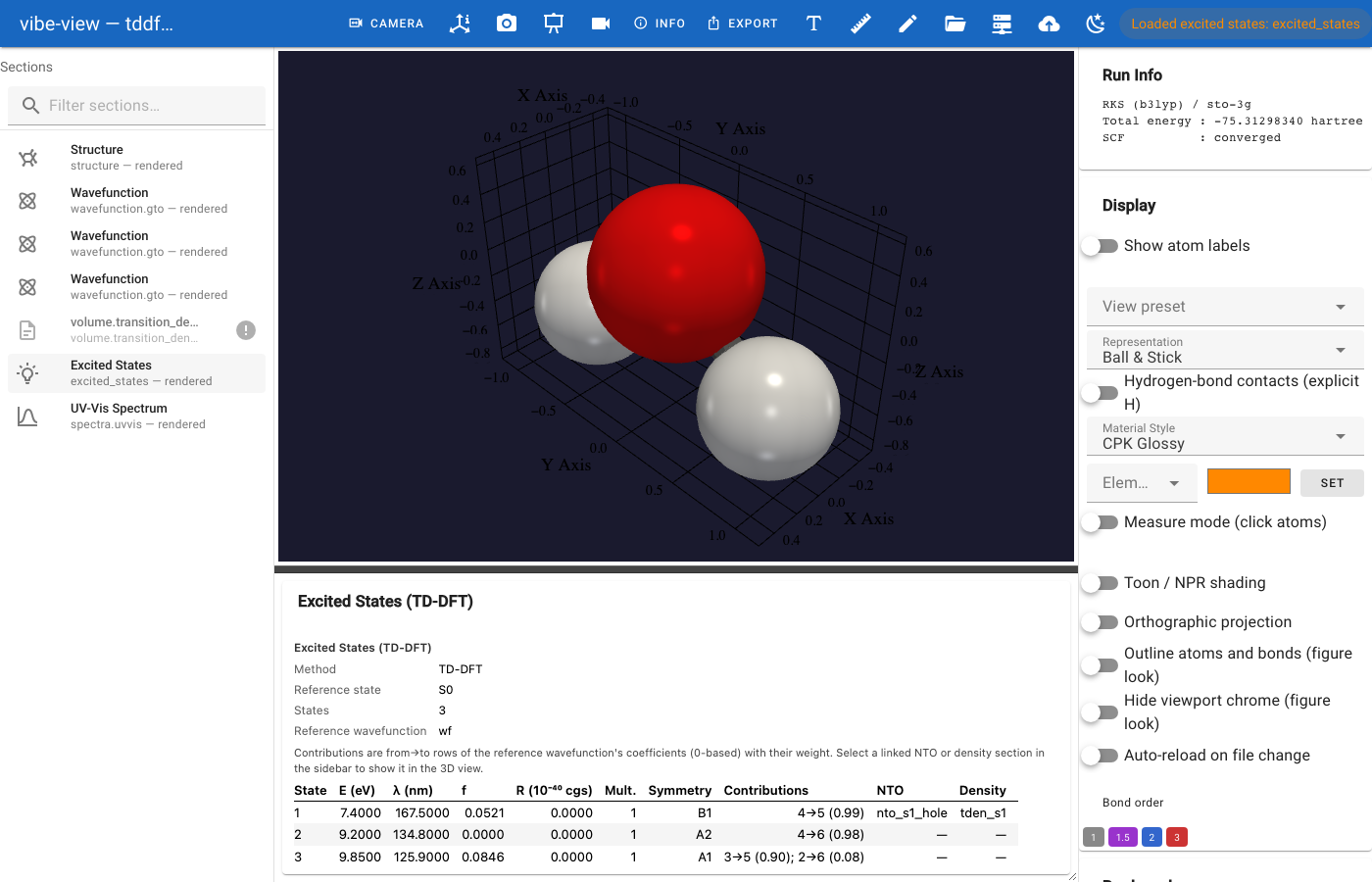
The excited-state table of the water example.
State 1 links to two more sections of the archive. Its hole and particle
natural transition orbitals are wavefunction.gto sections like any
other, so selecting nto_s1_hole or nto_s1_particle evaluates them in the
Molecular Orbitals panel, labelled with the state and its transition
weight. Its transition density, tden_s1, is a signed volume and
renders with both lobes, as the difference density did above. The UV-Vis
spectrum of the same calculation is a spectra.uvvis section; its peaks
name the states by their number.
The same table is available without a window:
vibe-viewer table docs/examples/tddft-water/tddft-water.qvf --kind excited_states
vibe-viewer tui docs/examples/tddft-water/tddft-water.qvf     # select Excited States
6. Charges
atom_properties becomes the Population Analysis table, and Color
atoms by charge paints the result onto the atoms, red positive and blue
negative.

Charges as a table and as an overlay.
7. Vibrations and the IR spectrum
Click vibrations, then a mode in the list. The structure oscillates along
that mode’s displacement; Vibration displacement amplitude exaggerates
it. When the file has IR intensities, in the vibrations section or a
companion spectra.ir section, the mode labels carry them, and the spectrum
itself is a stem chart with hover tooltips. A transition state’s imaginary
mode is labelled with an i, such as 893.0i cm⁻¹ (imaginary).
The same modes are a table. The ORCA water frequency example in the manual,
water-frequencies.qvf,
has an IR spectrum, so its table has an IR column:
vibe-viewer table docs/examples/orca-water/water-frequencies.qvf --kind vibrations
mode  frequency_cm-1  ir_intensity_km/mol
----  --------------  -------------------
1     0.0             0.0
...
7     1607.97         47.4925
8     3689.75         2.2052
9     3788.91         19.7215
Modes 1 to 6 are the translations and rotations. Raman activities, VCD
rotatory strengths, reduced masses, force constants and symmetry labels get
their own columns when the file has them; --format csv writes the table for
a spreadsheet. vibe-viewer animate starts on the first real mode, here mode
7 (--mode 7, counted from 1).

A normal mode.
8. Trajectories and reaction paths
A trajectory section is an optimisation, frame by frame, with the energy
profile tracking the current frame. A reaction.path adds the waypoints:
reactant, transition state, product.

An optimisation trajectory. This capture uses illustrative panel data.
9. Convergence and provenance
scf_history plots the energy and the DIIS error per iteration.
citations is the BibTeX bundle the producer says this calculation should
cite, ready to paste. run.record, when present, is the executed input and
the log.

SCF convergence.

The citations panel.
10. A periodic file
Open a periodic archive and the structure panel gains a unit-cell wireframe
and the Periodic Replication controls. Set Nx = Ny = Nz = 2 and the
atoms, the cell, the bonds and any active isosurface tile together.

A crystal, replicated.
bands and dos.total are drawn as one figure on a shared,
Fermi-referenced energy axis.

Band structure and density of states. This capture uses illustrative panel data.

The density of states on its own: valence band below the gap, conduction band above.
11. Two files at once
vibe-viewer compare a.qvf b.qvf
Both structures appear overlaid, one translucent colour per file, with a legend. Switch on Align (RMSD fit to first file) and the second is Kabsch-superposed onto the first with the RMSD shown, so the displacement you see is the geometric difference rather than a difference in coordinate frame. If both files carry a density on the same grid, the Density Difference card draws ρ_A − ρ_B as a two-colour surface.
12. Save the views you found
Set up a view, type a name in the Bookmarks card and press Save View. Do it for the structure, the density and the HOMO, then Save Session. A bookmark keeps the computed surface too, so selecting the HOMO bookmark evaluates the HOMO again rather than showing a bare structure. Next time, Load Session brings every bookmark back, and p turns them into a slideshow.
13. The same archive, elsewhere
Use an archive with the sections shown by vibe-viewer info. The following
commands assume its section IDs are homo and density; replace them with
your file’s IDs. A kind describes the data; an ID selects one particular
section.
vibe-viewer show calculation.qvf                     # one braille frame, no display needed
vibe-viewer show calculation.qvf -s homo --isovalue 0.03
vibe-viewer tui calculation.qvf                      # the interactive terminal viewer
vibe-viewer capture calculation.qvf -s density -o density.png
vibe-viewer desktop calculation.qvf                  # a native window
from vibeview import QVFReader, get_table

with QVFReader("calculation.qvf") as r:
    for s in r.sections:
        print(s.id, s.kind)
headers, rows = get_table("calculation.qvf", "atom_properties")
Where next
From input to a shareable result, for commands you can run from a fresh install without a computed showcase archive.
The browser viewer, the reference for every control on this tour.
Building and editing, for changing the structure rather than looking at it.
Build, inspect and present, the hands-on companion to this tour for building, surfaces, figures and model scenes.
Supported programs and calculations, for computing the results this tour inspects, and vibe-sketcher and vibe-qc, for the programs that draw and compute them.
Terminal mode, for the compute node.
Figures without a display, for the paper.